Two-factor authentication (2FA)
Protect your Tinct account with a code from an authenticator app.
Last updated 11 days ago
Two-factor authentication adds a second step when you sign in to Tinct. After your password, or after you sign in with Google, Microsoft or LinkedIn, Tinct asks for a 6-digit code from an authenticator app on your phone. Someone who finds out your password still can't get into your account without your phone.
2FA is optional, unless one of your workspaces requires it (see Require two-factor authentication in your workspace).
What you need
An authenticator app on your phone, such as Google Authenticator, Microsoft Authenticator, 1Password or Authy. Setting it up takes about two minutes.
Turn on 2FA
- Click your name at the bottom left of the dashboard, then open the Connexion tab.
- In the Two-factor authentication card, click Set up.
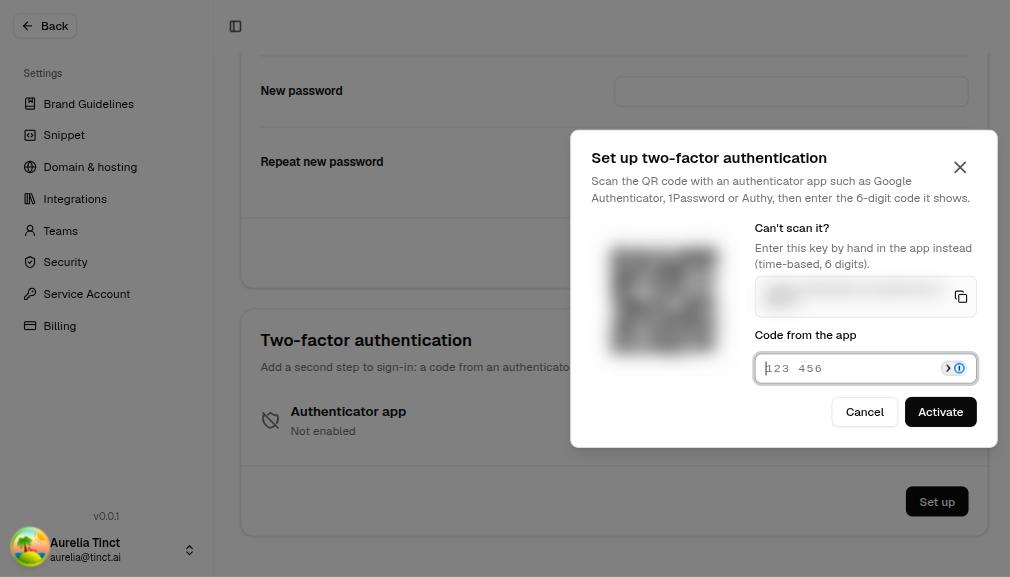
- Scan the QR code with your authenticator app. If you can't scan it, type the key shown under Can't scan it? into the app instead.
- Enter the 6-digit code the app shows in Code from the app, then click Activate.
- Save your recovery codes (see below), then click I have saved my recovery codes.
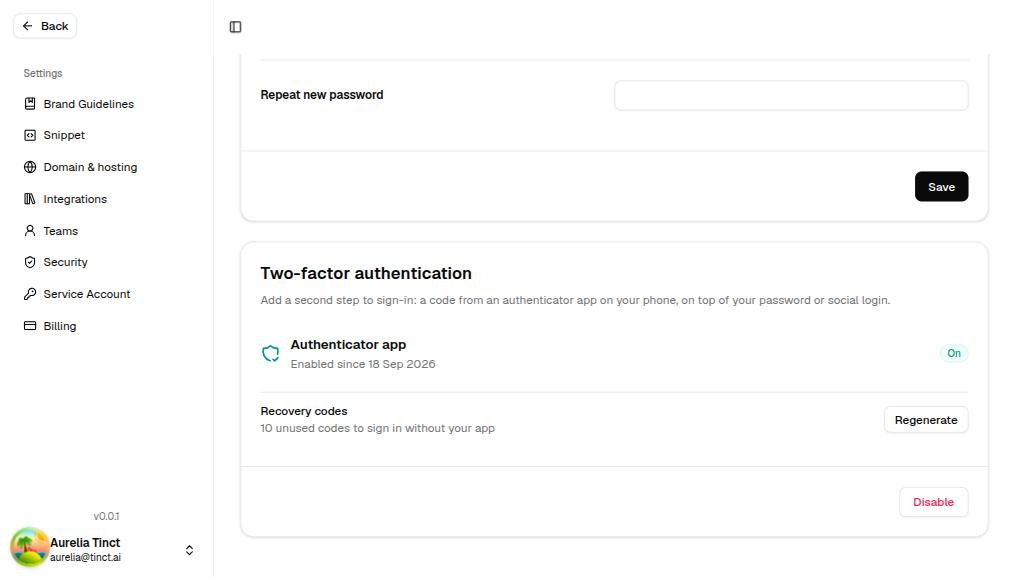
The card now shows On, the date you turned on 2FA, and how many recovery codes you have left.
Save your recovery codes
Recovery codes let you sign in if you lose your phone or can't open your authenticator app.
- You get 10 codes, each in the form
xxxxx-xxxxx. - Each code works only once.
- They are shown only once. Click Copy codes or Download .txt, then store them in a password manager or print them.
💡 Keep your recovery codes somewhere other than your phone. If you lose your phone, you'll need them.
Signing in with 2FA
- Sign in as usual: with your email and password, or with Google, Microsoft or LinkedIn.
- Tinct asks you to Enter the 6-digit code from your authenticator app. Open the app and type the code for Tinct. The form sends itself after the sixth digit.
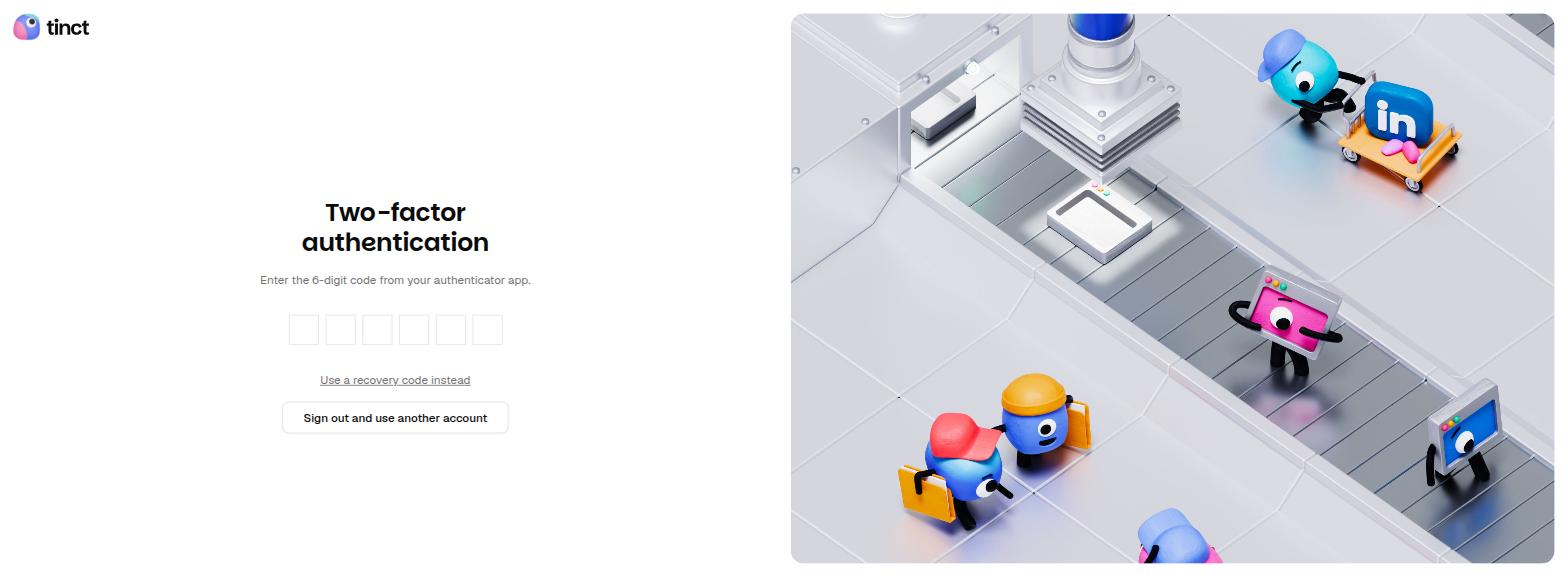
- Don't have your phone? Click Use a recovery code instead and enter one of your recovery codes. To switch back, click Use my authenticator app instead.
- Wrong account? Click Sign out and use another account.
Manage your recovery codes
The Two-factor authentication card shows how many unused recovery codes you have left. Tinct warns you when you have fewer than 3 left.
To get a new set:
- Click Regenerate.
- Enter your current password to confirm it's you.
- Click Generate new codes, then save the 10 new codes.
Your previous codes stop working as soon as you generate new ones.
Turn off 2FA
- On the Connexion tab, click Disable in the Two-factor authentication card.
- Enter your current password, then click Disable.
Signing in no longer asks for a code, and your recovery codes stop working.
If one of your workspaces requires 2FA, the card says Required by workspace name. It cannot be disabled. and there is no Disable button. You can still regenerate your recovery codes.
💡 No Tinct password? If you only sign in with Google, Microsoft or LinkedIn, Tinct asks for a code from your authenticator app, or one of your recovery codes, instead of your password when you regenerate codes or turn off 2FA.
If your workspace uses single sign-on
When you sign in through your company's identity provider, the second factor is your identity provider's, not Tinct's. That sign-in satisfies the workspace's own 2FA requirement, so Tinct does not ask you for a code on top of it. Whatever second step your company enforces at its provider is what protects your Tinct account.
You can still set up Tinct 2FA for the times you sign in another way — with a password, or in a workspace that does not use single sign-on. And if another of your workspaces requires 2FA, Tinct still asks you for your code after the provider's sign-in: that requirement is not your company's provider to satisfy. See Sign in with SSO.
Troubleshooting
"Invalid code"
- Codes change every 30 seconds. Enter the code that is on screen now.
- Codes depend on your phone's clock. Check that your phone sets its date and time automatically.
- Each code works only once. If you have just used one, wait for the next one.
"Too Many Attempts"
After several wrong codes in a row, Tinct pauses verification for 15 minutes to protect your account. Wait, then try again.
You're changing phones
Move your accounts to the new phone with your authenticator app's own transfer or sync feature. If your workspaces don't require 2FA, you can also turn 2FA off and set it up again on the new phone.
You lost your phone and your recovery codes
Contact Tinct support at support@tinct.ai. We check your identity before resetting your 2FA. After the reset you sign in with your password alone. If a workspace requires 2FA, Tinct asks you to set it up again at your next sign-in.
FAQ
Does 2FA also apply when I sign in with Google, Microsoft or LinkedIn?
Yes. Tinct asks for your code after you sign in with the provider.
Am I signed out of my other devices when I turn on 2FA?
No. Sessions that are already open keep working. Tinct asks for a code the next time you sign in.
Can my workspace admins see whether I use 2FA?
Yes. Workspace admins see a 2FA column (On / Off) in Settings → Teams. They can't see your codes and can't change your 2FA settings.
Was this helpful?
Still need help? Share an idea