Verifying your installation and troubleshooting
Last updated 6 months ago
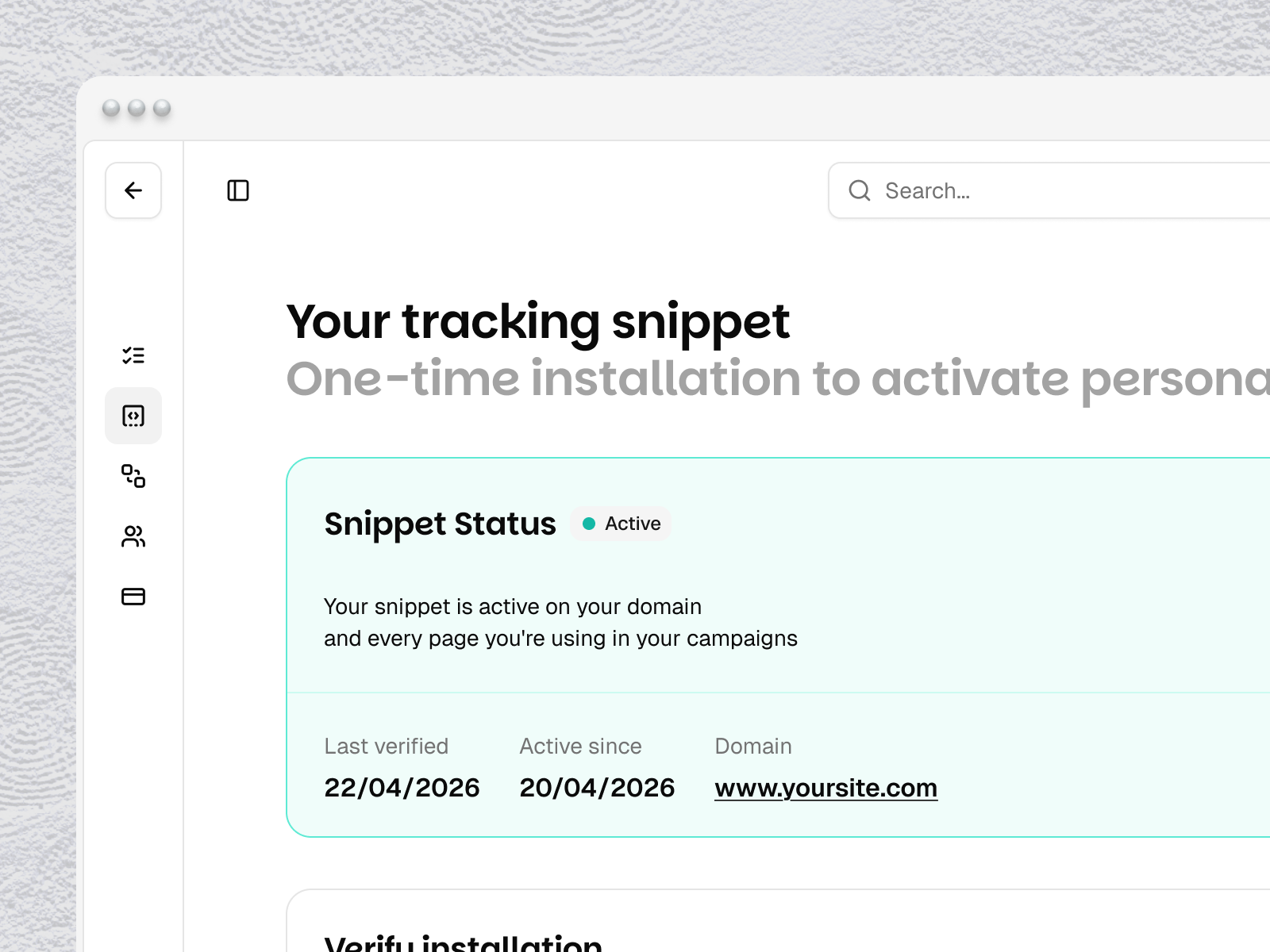
After installing the Tinct snippet on your website, you can check that everything is working correctly from Workspace → Settings → Snippet.
How to verify
Scroll to the Verify installation section.
Enter your website URL (e.g.,
https://yoursite.com).Click Verify Installation.
Tinct will check your domain and every landing page URL used in your active campaigns to confirm the snippet is loading correctly.
Understanding your snippet status
After verification, your Snippet Status card will show one of three states:
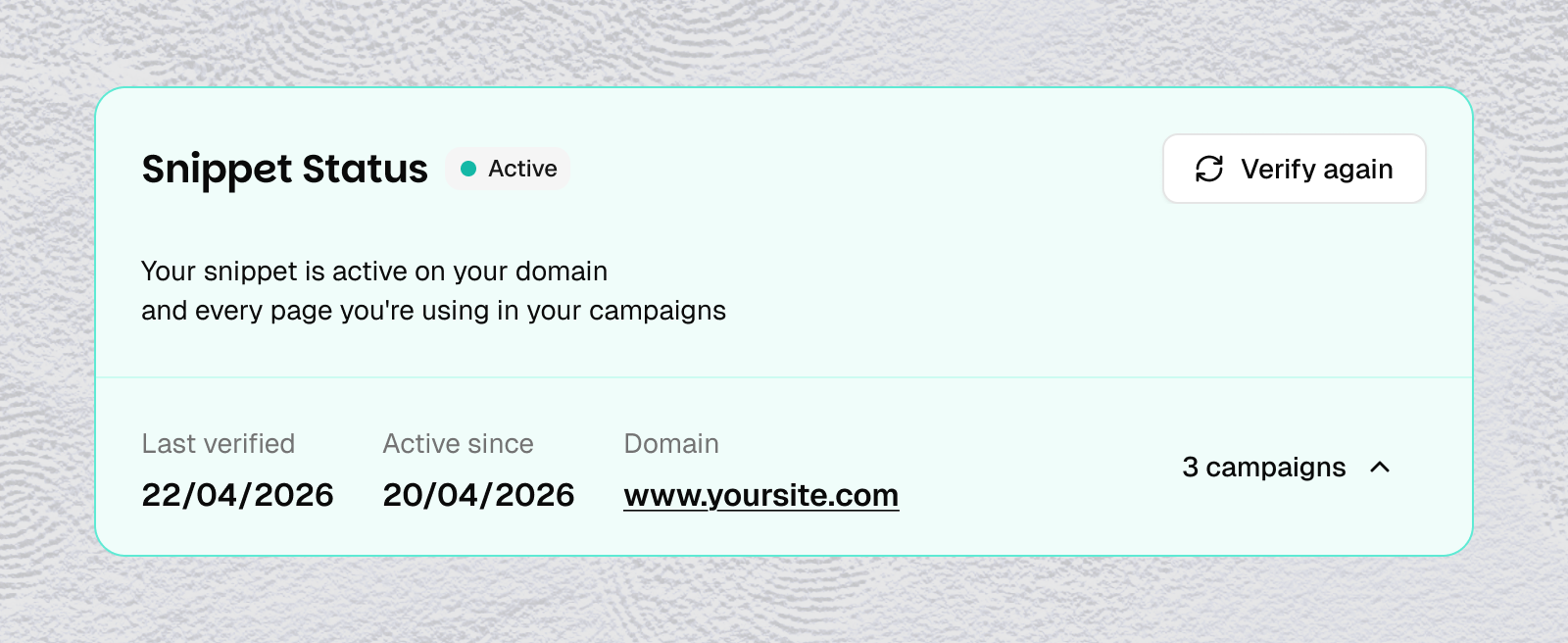
🟢 Active
Everything is working. The card displays your Last verified date, the Active since date, your Domain, and the number of campaigns covered. No action needed.
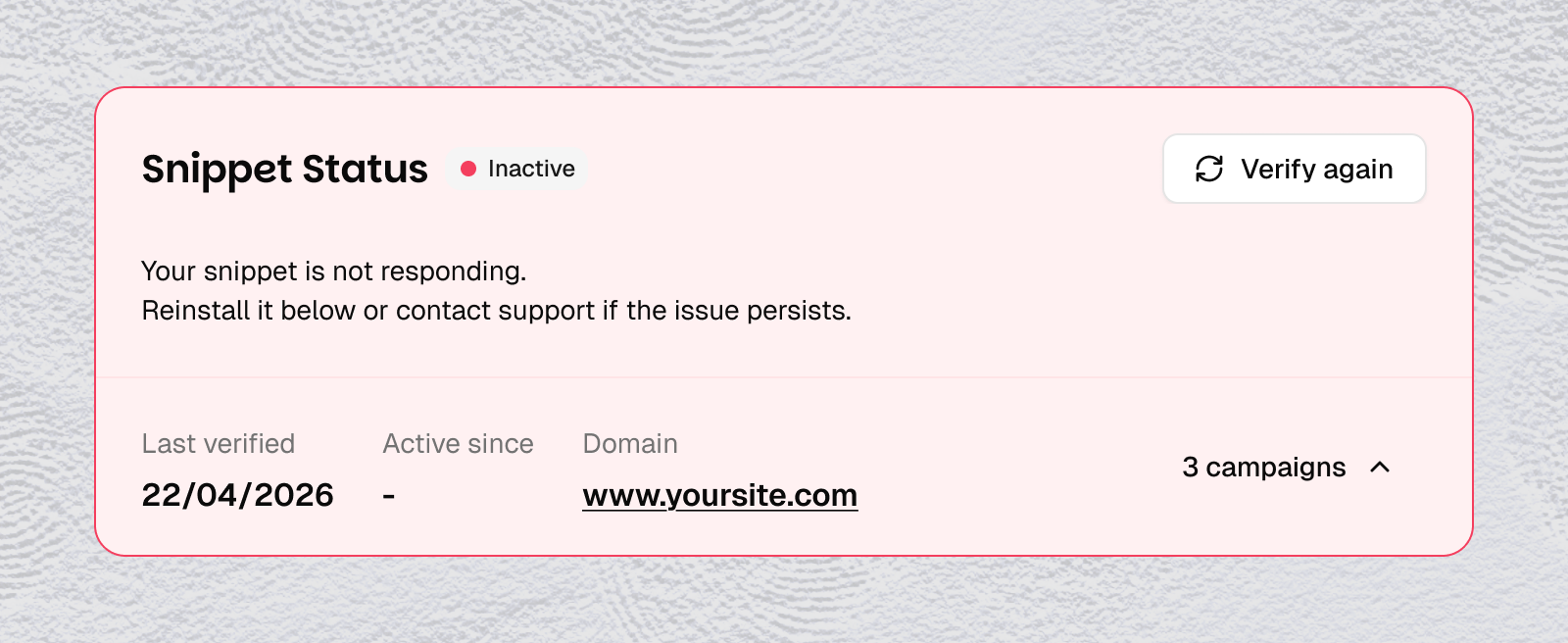
🔴 Inactive
Tinct could not detect the snippet on your domain. This usually means the snippet was never installed, was removed, or your site hasn't been deployed since installation.
What to do: Reinstall the snippet using one of the installation methods, deploy your changes, and click Verify again.
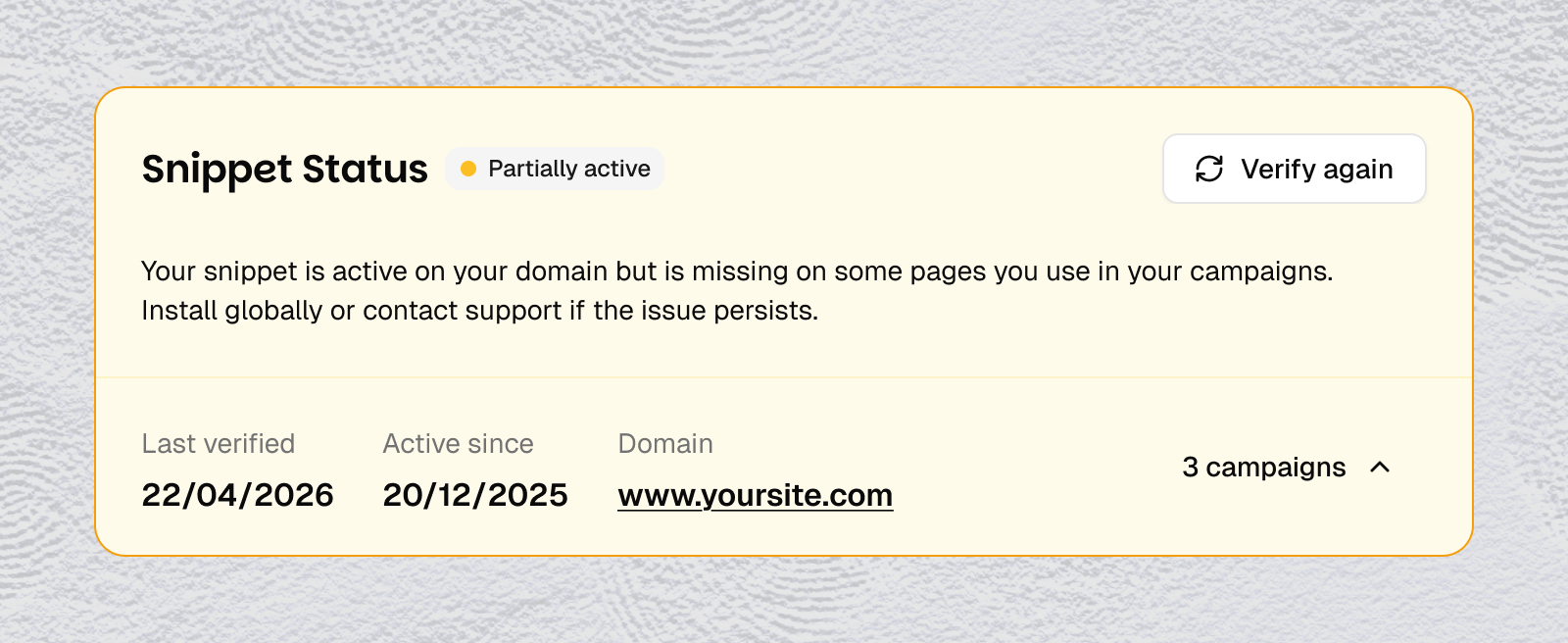
🟠 Partially active
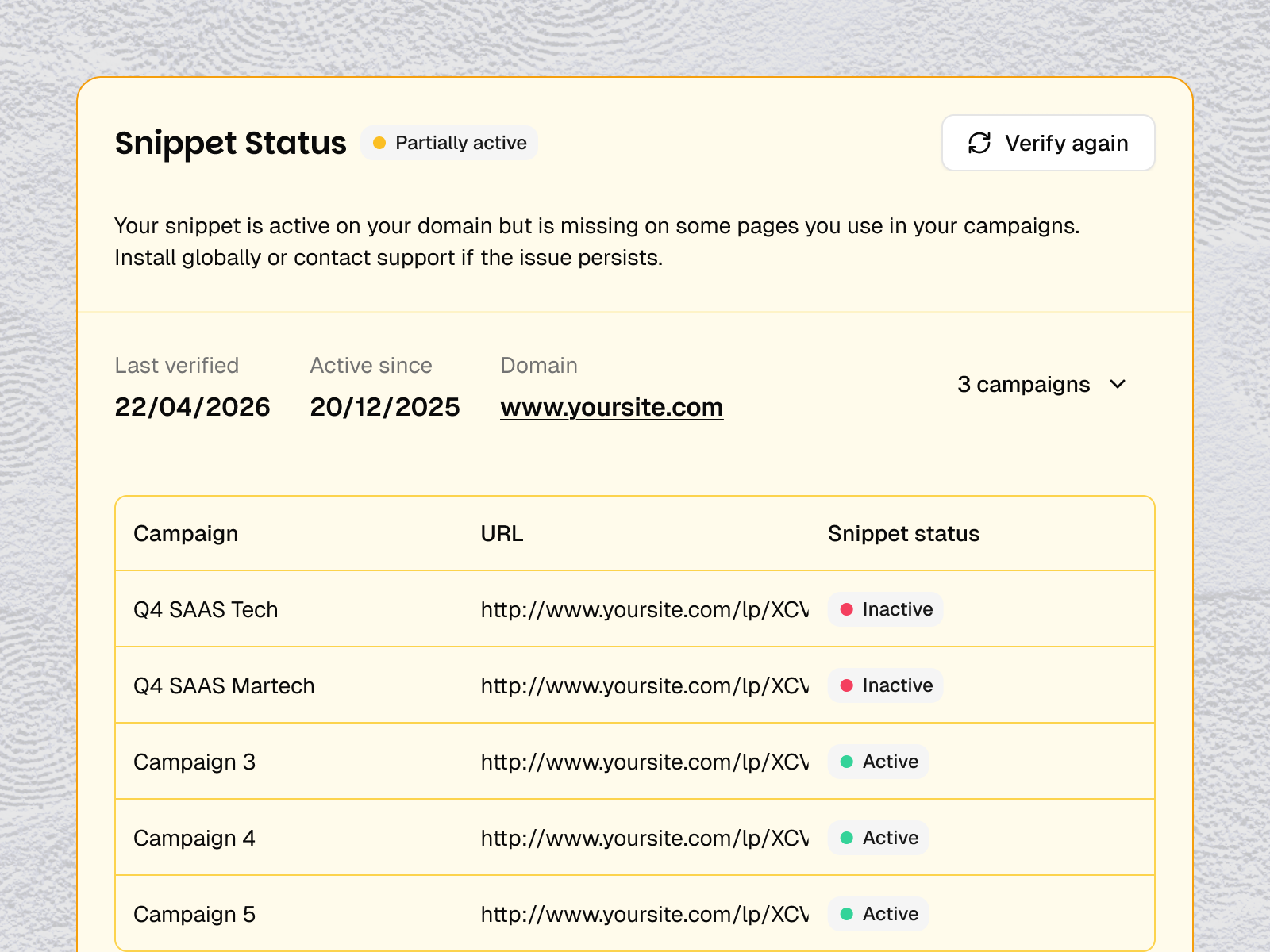
Tinct detects the snippet on your domain but not on every landing page used in your campaigns. Click the campaigns dropdown to expand the detail view — you'll see a table listing each campaign with its URL and individual snippet status (🟢 Active or 🔴 Inactive).
What to do: The most common cause is that the snippet was installed on a specific page rather than globally. Reinstall it in your site-wide layout or global header so it loads on every page. Then click Verify again.
Troubleshooting checklist
If your status is Inactive or Partially active, go through these checks:
1. Is the snippet in the right place?
The code must be inside the <head> section of your site, before the closing </head> tag. If it's in the <body>, it may not load early enough to be detected.
2. Is the snippet installed globally?
If you pasted the snippet into a single page's HTML instead of your site-wide layout or global header template, other campaign pages won't have it. This is the most common cause of a Partially active status.
3. Have you published/deployed your changes?
Changes in Webflow, Framer, Shopify, WordPress, or your codebase need to be published before they take effect. Check that your latest version is live.
4. Is the snippet being blocked?
Some ad blockers or browser privacy extensions can prevent scripts from loading. Try verifying from a browser with no extensions, or from an incognito window.
5. Is there a caching issue?
If you use a CDN (Cloudflare, Vercel, Netlify, Fastly…), your site may still serve an older version without the snippet. Purge your cache or wait a few minutes, then click Verify again.
6. Did you enter the correct URL?
Make sure the URL in the verification field matches the actual domain where your snippet is installed.
Still not working?
If you've gone through all the steps above and your snippet status is still not Active, reach out to our team — we'll help you debug it.
📩 Contact support via the chat widget or email us at support@tinct.ai.
Was this helpful?
Still need help? Share an idea