Require two-factor authentication in your workspace
Make two-factor authentication mandatory for every member of your workspace.
Last updated 11 days ago
As a workspace admin, you can require every member of your workspace to use two-factor authentication (2FA). Once you require it, members can't reach Tinct until they have set it up, and nobody can turn it off.
To learn how 2FA works for a single user, see Two-factor authentication (2FA).
Before you start
- You must be an admin of the workspace.
- Your own account must have 2FA. If it doesn't, the switch is greyed out and the page shows Your own account needs 2FA first. Click Go to your account settings and set it up first.
Turn on the requirement
- Click your workspace name, then Settings → Security.
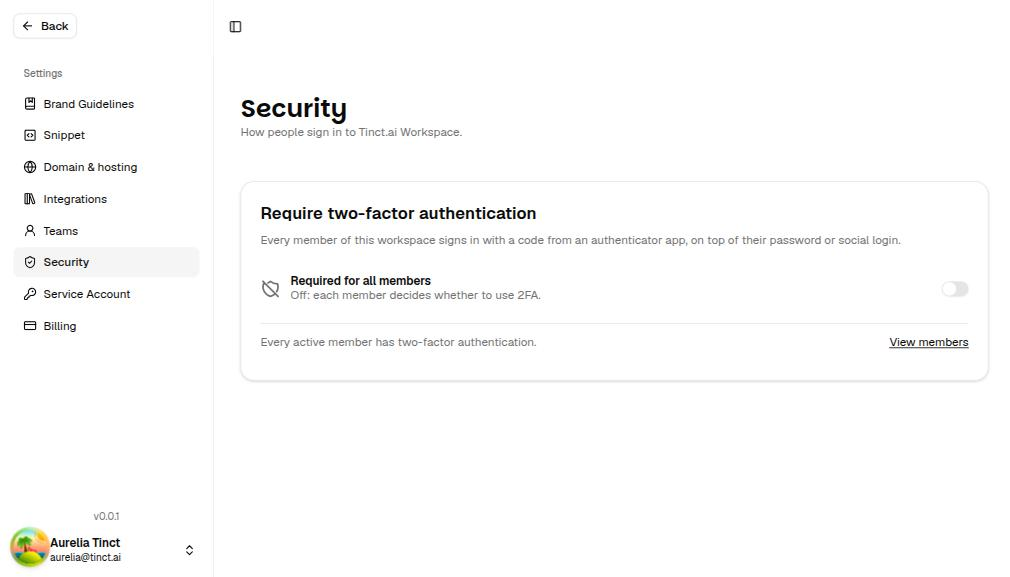
- In the Require two-factor authentication card, turn on Required for all members.
- The dialog tells you how many active members don't have 2FA yet. Click Require 2FA.
What your members see
- Members who already have 2FA: nothing changes, but they can no longer turn it off.
- Members without 2FA get an email, Two-factor authentication is now required. The next time they sign in, Tinct asks them to set up 2FA before they can continue: they scan a QR code, enter a code, and save their recovery codes. They can't skip this step.
- Members who are signed in right now are asked to set it up within 24 hours at most.
- People who join the workspace later are asked to set it up when they sign in.
Good to know:
- 2FA protects the person's whole Tinct account. A member of several workspaces needs 2FA as soon as one of them requires it.
- Members who sign in through your identity provider satisfy the requirement with that sign-in: the second factor is your provider's, and Tinct does not ask them for a code on top of it. See Require SSO in your workspace.
- Service accounts used for API integrations are not affected.
- A member's AI assistant connected through MCP stops working until the member has set up 2FA and reconnected it.
See who has 2FA
On Settings → Security, the card shows how many active members don't have 2FA yet. Click View members to open Settings → Teams: the 2FA column shows On or Off for each member, and - for invitations that are still pending. Only workspace admins see this column.
Turn off the requirement
- Go to Settings → Security.
- Turn off Required for all members, then click Stop requiring 2FA.
Members keep the 2FA they have set up, but they can turn it off again. New members are no longer asked to set it up. No email is sent.
A member lost their phone
The member can sign in with one of their recovery codes. If they have lost those too, ask them to contact Tinct support at support@tinct.ai. We check their identity before resetting their 2FA, and Tinct asks them to set it up again at their next sign-in.
FAQ
Why can't I use the switch?
- Only workspace admins can change this setting means you are not an admin of this workspace.
- Your own account needs 2FA first means you need to set up 2FA on your own account first.
Can I require 2FA for some members only?
No. The requirement applies to every active member of the workspace.
Can I turn off 2FA for a member?
No. Only the member can manage their own 2FA. If they are locked out, Tinct support can reset it after checking their identity.
Was this helpful?
Still need help? Share an idea