Managing campaigns
Last updated 6 months ago
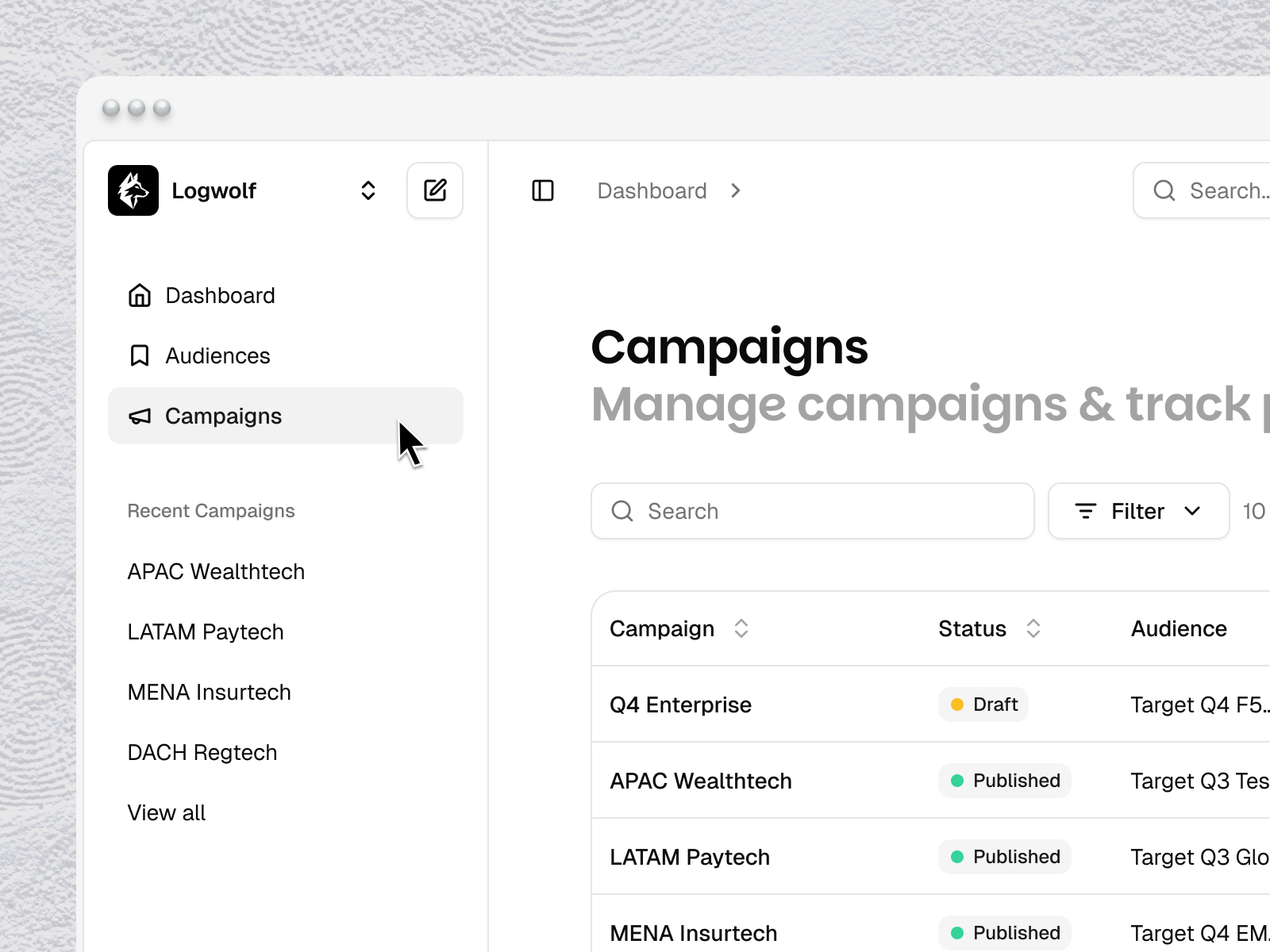
Accessing your campaigns
All campaigns are listed under Campaigns in the left navigation.
Each campaign shows its name, status, target URL, and audience.
Editing a live campaign
You can update a campaign's audience or block configuration at any time. After making changes, affected pages will need to be regenerated before the updates go live.
To proceed go to campaign’s dashboard, “Settings” Tab and choose which element you want to edit.
Enabling or disabling individual accounts
Within any campaign, you can disable personalization for a specific company without affecting the rest of the campaign. That company will see your original page.
To do so, go to campaign’s dashboard, “Page Variants” Tab and choose the company. Then go to edit and you’ll have an “excluded” option in the 3 dots menu, next to the company logo and name.
The campaign name
The campaign name (visible in the top left of the editor, e.g. "Travel Security - B...") is internal. Your visitors never see it. Name campaigns in a way that makes sense to your team — by vertical, by landing page, by campaign date.
Snippet installation and campaigns
The snippet is connected at the end of the first campaign flow. You can configure your campaign, design editor, and audience without having the snippet installed — but personalization won't be active until the snippet is in place on your landing page.
The Publish step will prompt you to install it if you haven't done so yet.
Was this helpful?
Still need help? Share an idea