Creating and configuring a campaign
Last updated 6 months ago
A campaign in Tinct has five steps: Configure campaign → Personalization Scope→ Define Audience → Preview & Refine → Publish.
Here's what happens at each step.
Step 1: Configure campaign
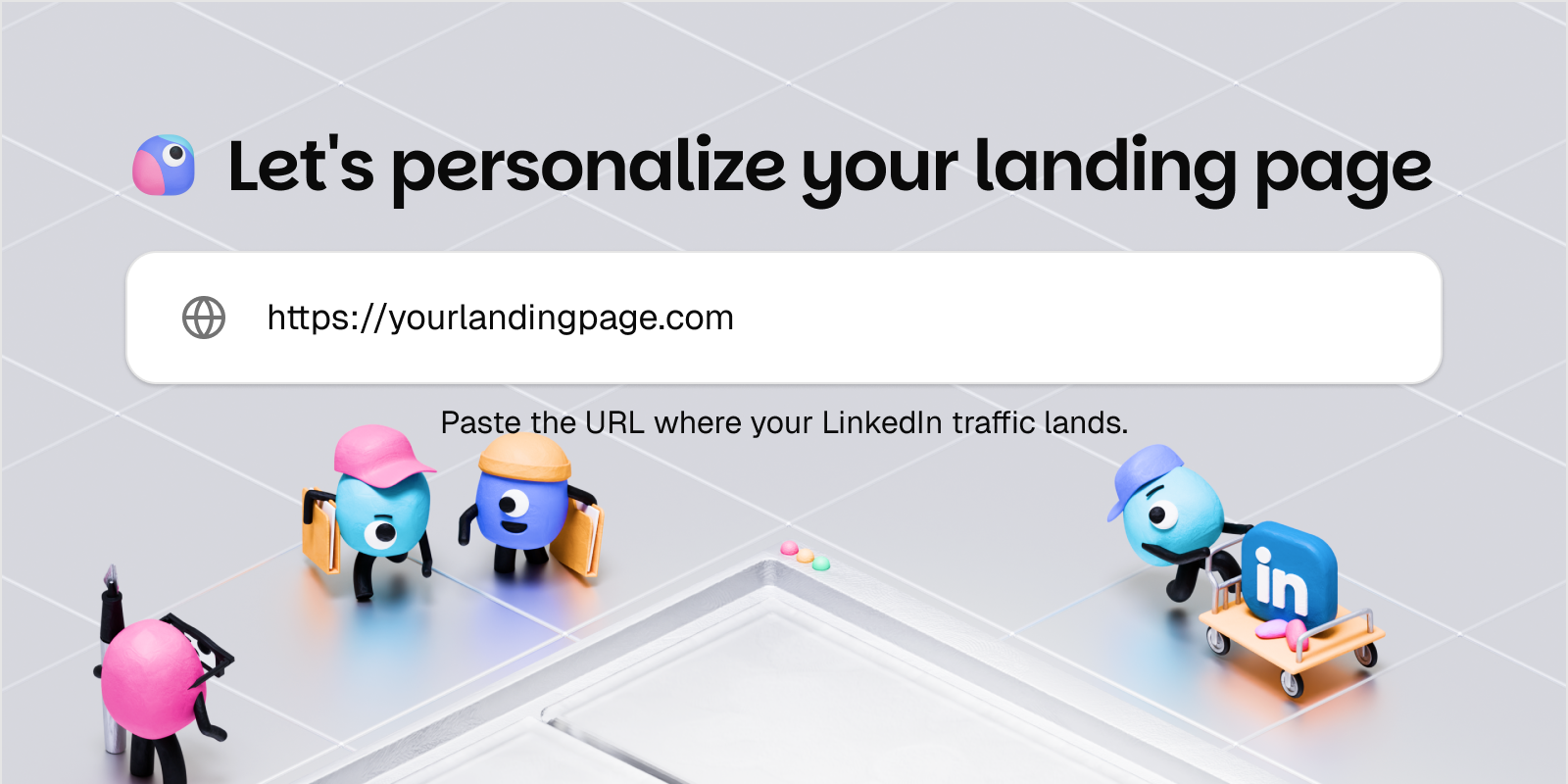
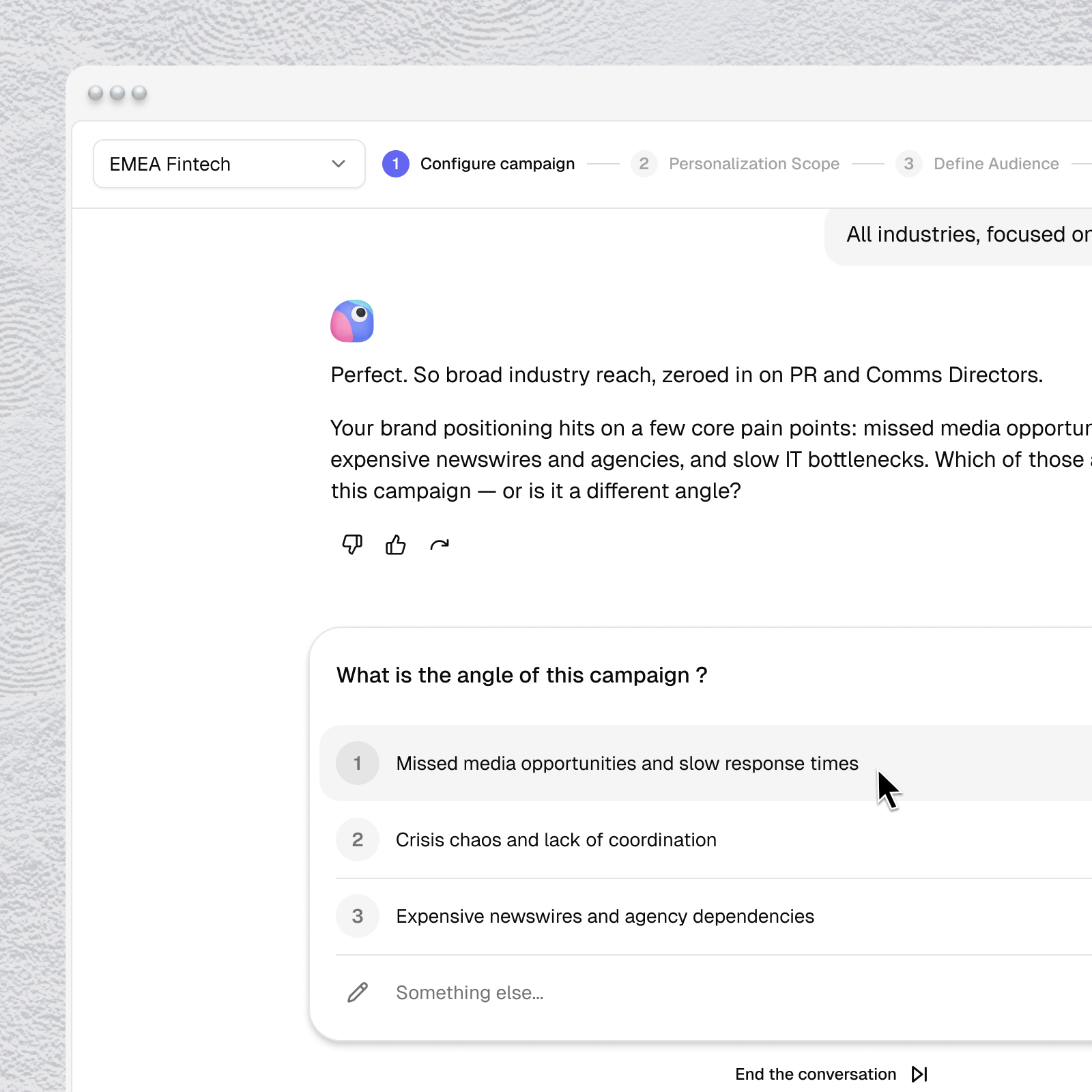
Click New campaign. Tinct's AI agent opens a conversational interface and asks you: "Which landing page would you like to personalize?".
Enter your landing page URL. Tinct fetches the page, confirms it's found, and immediately starts asking you questions about the campaign — drawing on what it already knows from your brand context. The questions adapt based on your answers.
You can type free-form answers or pick from suggested options the AI surfaces based on your brand. At the end, Tinct shows you a campaign summary card.
Review it and click Perfect, let's continue — or refine any field before moving on.
Step 2: Personalization Scope
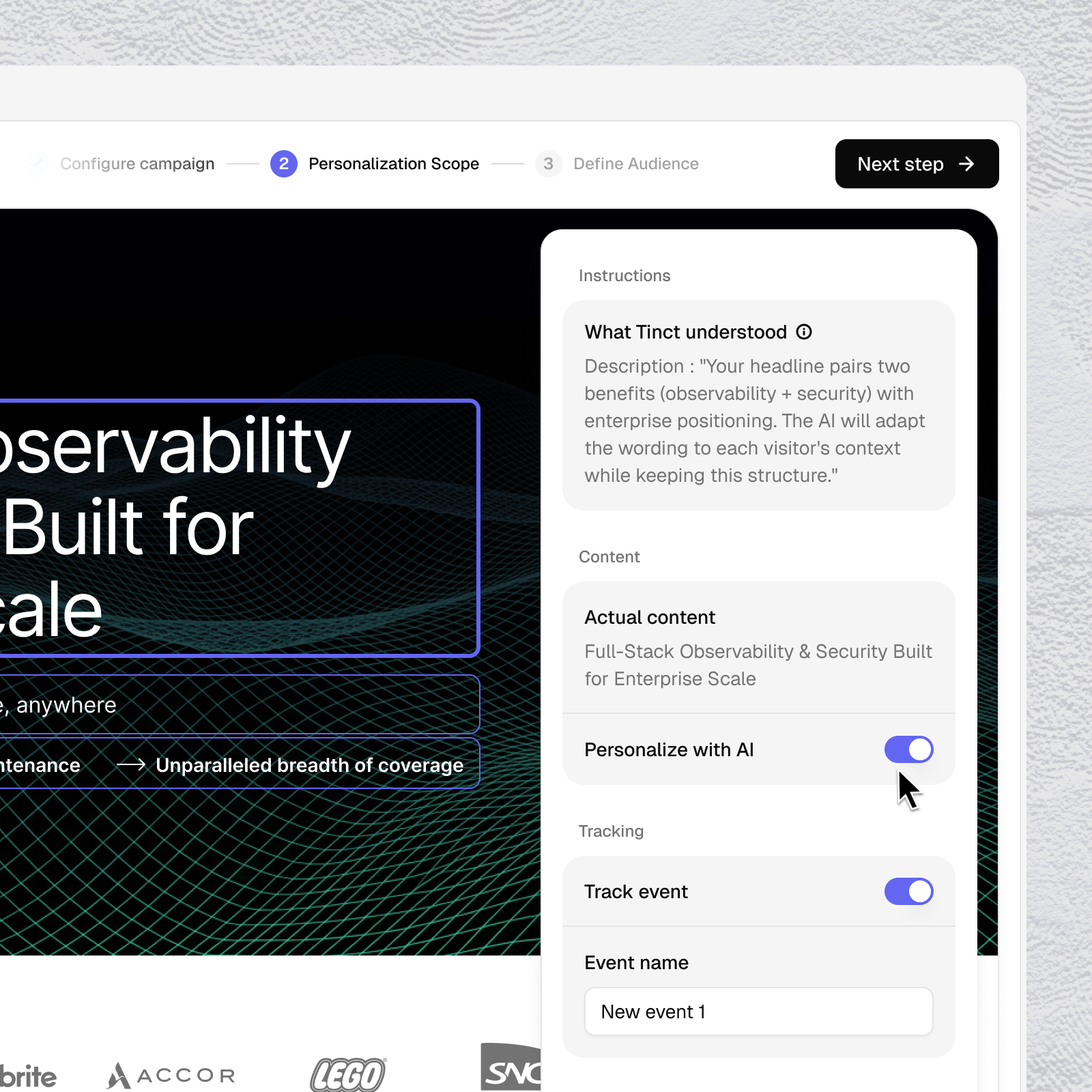
Tinct analyzes your landing page and builds an interactive preview inside the editor. It maps your page into blocks — Page structure, Content blocks, Visual elements, CTAs — then opens your actual page with all identified blocks highlighted.
For each block, you decide two things:
Personalize with AI (on/off) Toggle this on for blocks where personalization will have impact — typically your hero headline, subheadline, use case sections, body copy… Leave it off for blocks you want to keep identical for every visitor.
Track event (on/off) For CTA blocks, you can enable event tracking and give the event a name (e.g.
cta_click, demo_click).
Click any block to see the panel on the right.
When you're done configuring blocks, click Next step.
Step 3: Define audience
This is where you select which companies will see personalized pages.
Click + Create an audience and see how to create an audiences here.
Once your audience is created and selected, click Next step.
Step 4 : Preview & Refine
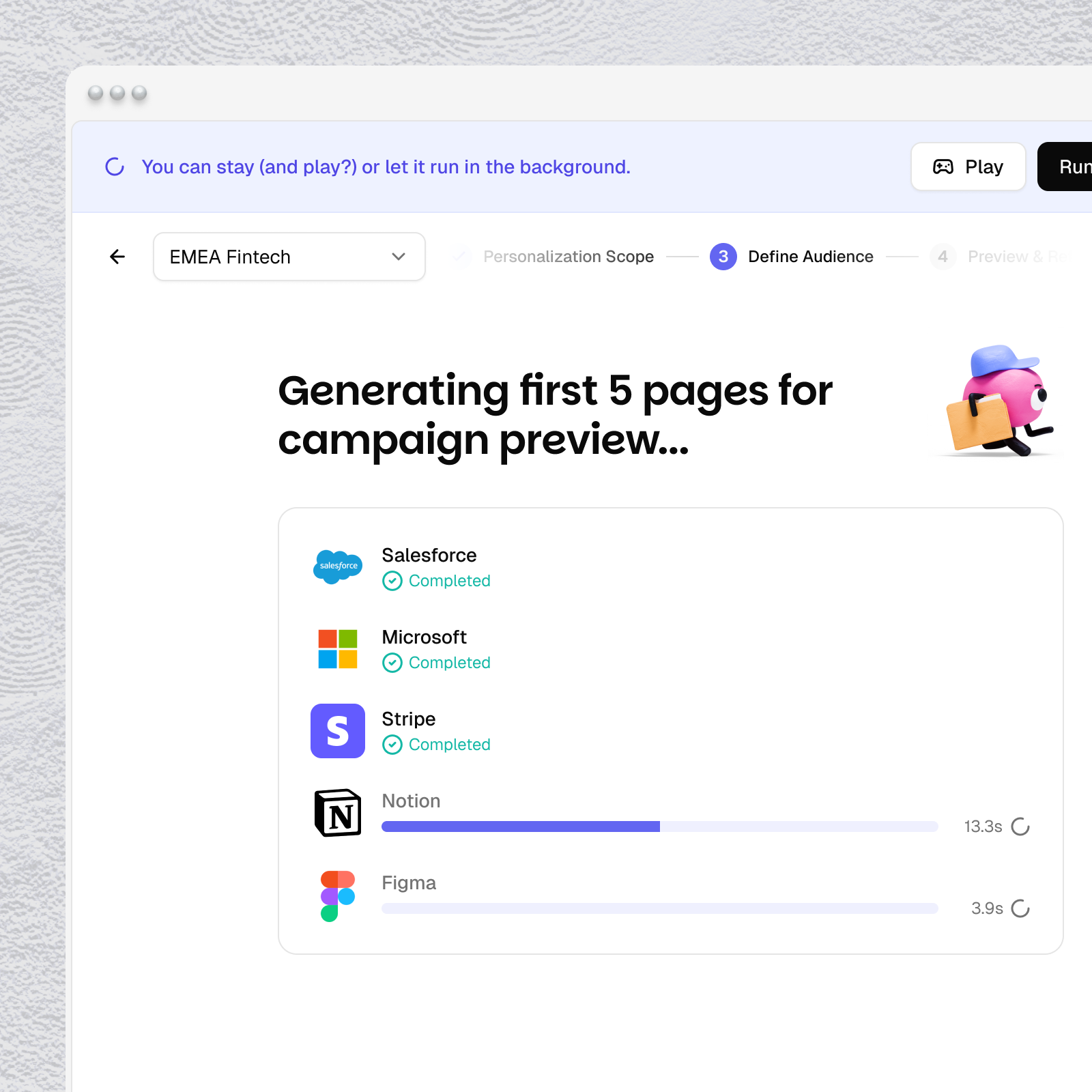
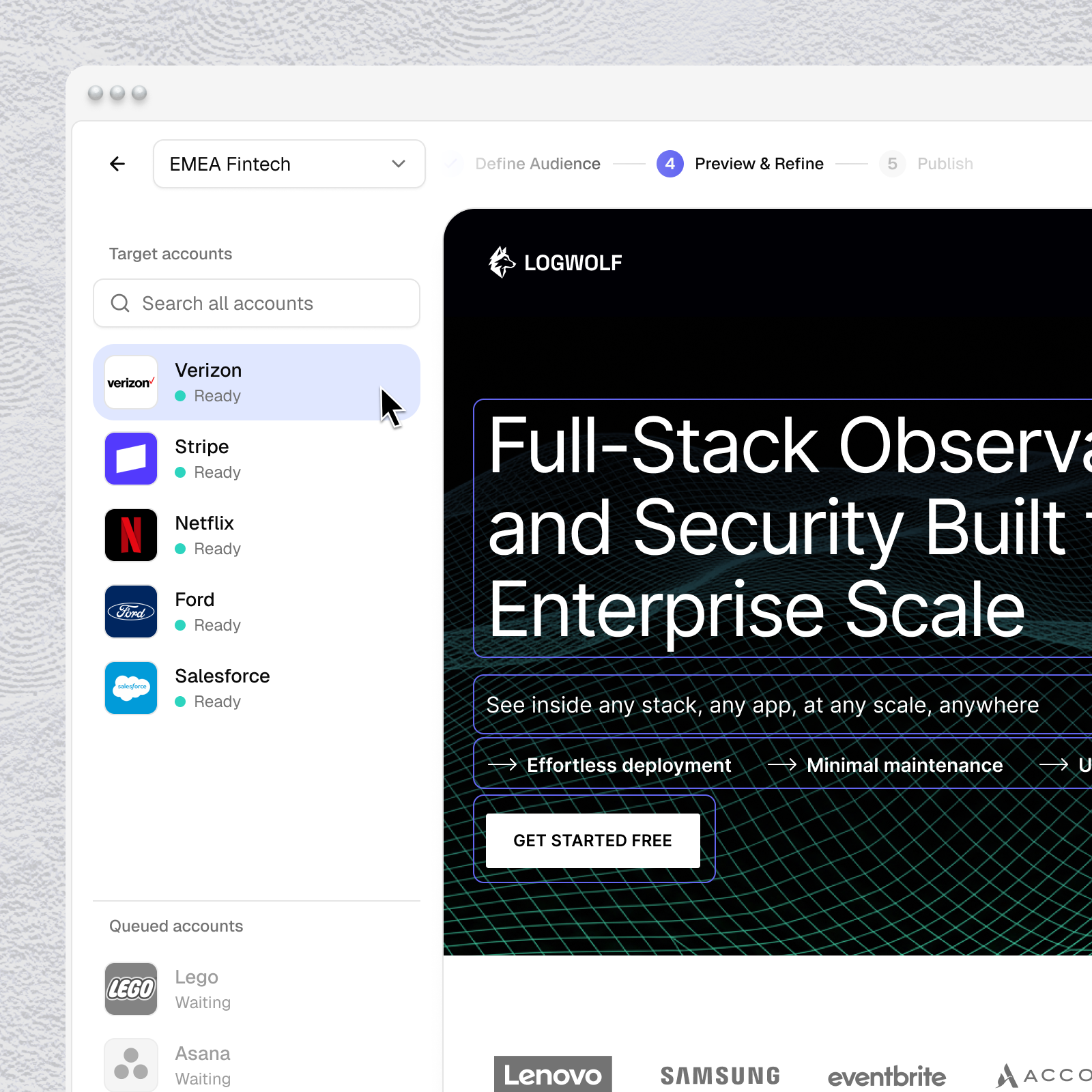
After defining your audience, Tinct starts generating the first 5 pages for campaign preview. This lets you check the quality and direction of the personalization before committing to generating your full list — which can take time depending on how many companies you're targeting.
Once those 5 pages are ready, you enter the review interface. Click any company to preview their personalized version.
If you click on a block on a page variant a right panel appears.
You can see for each block:
Original — the existing content on your page
Personalized — what Tinct generated for this specific company with an Edit button to modify the personalized content directly.
You can also use the Ask Tinct tab to chat with the AI and request changes to specific blocks in plain language (e.g. "Can you make sure that this headline talks about bot protection?").
When you're happy with the first 5 pages, click Generate all (n) to generate the rest of your audience. Once all pages are ready, click Publish in the top right.
Step 5: Publish
See this article about how to publish a campaign.
Was this helpful?
Still need help? Share an idea