Sign in with SSO
How to sign in when your company uses single sign-on, and what the error messages mean.
Last updated 11 days ago
If your company connected its identity provider to Tinct, you sign in where you already sign in for everything else. There is no separate button to look for: Tinct works it out from your email address.
Signing in
- Go to the Tinct sign-in page and type your work email address in Email.
- Click Continue.
- Tinct sends you to your company's identity provider. Sign in there as usual.
- You land back in Tinct, signed in.
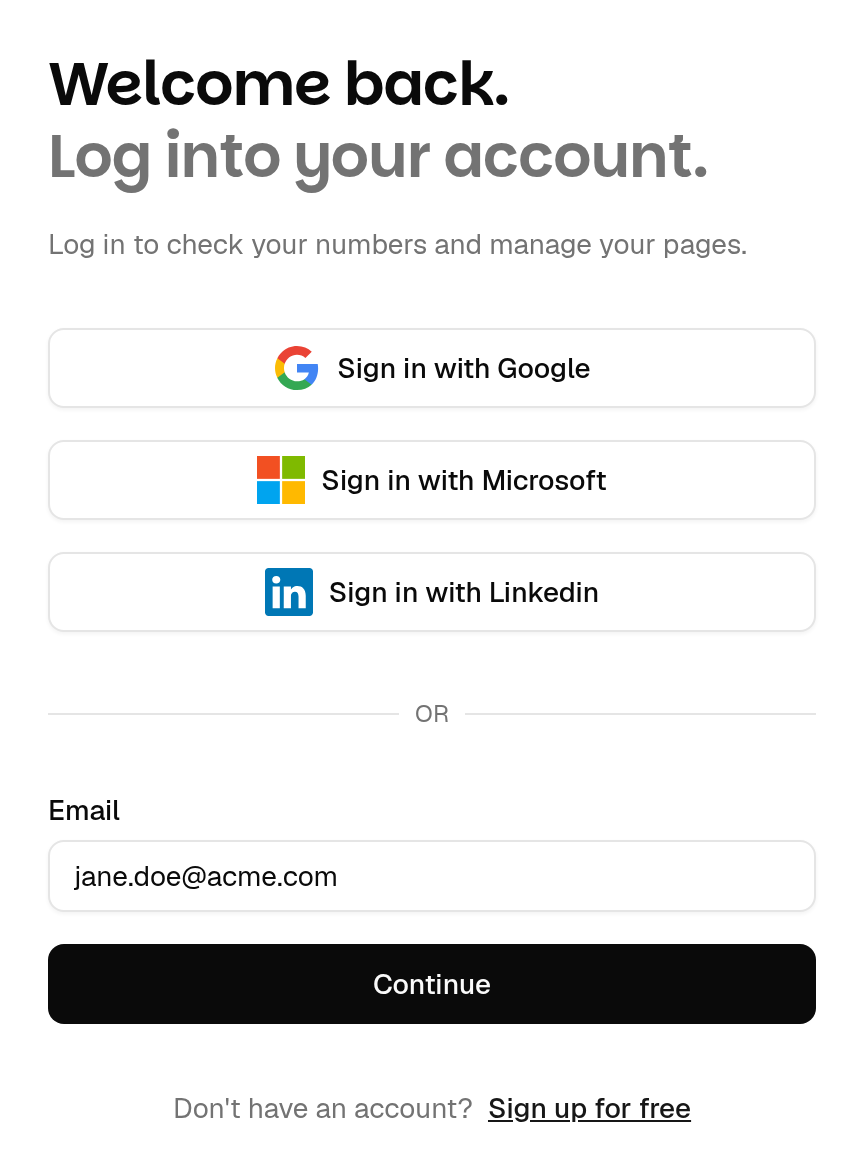
The first time, your account is created for you if your workspace allows it. You are never asked to choose a Tinct password.
💡 No code to type. Your identity provider's second step — its authenticator app, its security key, whatever your company uses — is the second factor. Tinct does not ask for one of its own on top, with one exception: if another of your workspaces requires two-factor authentication, Tinct still asks for your code, because your company's provider cannot answer for that workspace. See Two-factor authentication (2FA).
"Sign in another way"
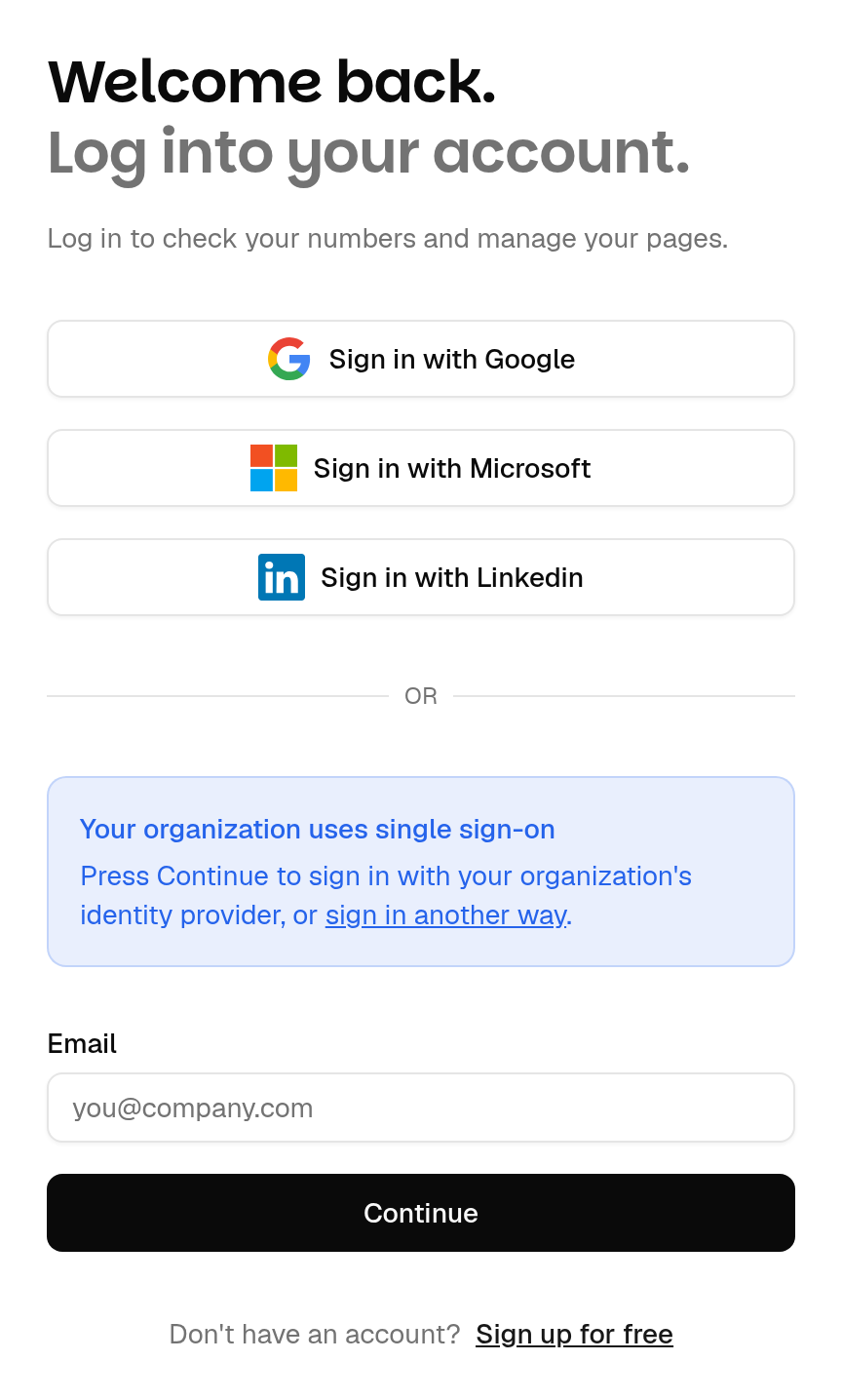
While your workspace has single sign-on switched on but not required, Tinct sends you to your identity provider by default and still lets you in another way. If you come back to the sign-in page, a notice says:
Your organization uses single sign-on — Press Continue to sign in with your organization's identity provider, or sign in another way.
Click sign in another way to reach the password step. Once your workspace requires single sign-on, the notice is gone and your identity provider is the only way in.
Signing in again later
- Your session lasts as long as your workspace admin allows — 24 hours by default. After that, Tinct sends you back to your identity provider. While your session there is still open, this is usually a redirect and nothing to type.
- Signing out of Tinct signs you out of Tinct only. Your identity provider session stays open, and signing out there does not close your Tinct session.
What the messages mean
Single Sign-On Required — "Your organization requires single sign-on for this email address. Enter it below to continue with your organization's identity provider." You tried a password, a reset or a social sign-in with an address your company manages. Type the address in Email and click Continue.
"This workspace signs its members in through its own identity provider. Sign in there to continue." — the same thing, seen from inside the app.
"Your single sign-on session has expired. Sign in through your identity provider again." — your session reached the length your workspace set. Sign in again; nothing is lost.
"Your session was ended. Sign in again to continue." — your access was ended, for instance because your password changed or your membership was changed. Sign in again.
Single Sign-On Failed
These come with a reference at the bottom of the message. Note it: it is what lets your IT team find the exact refusal in Tinct's logs.
FAQ
I have a personal Tinct account with the same address. What happens to it?
It becomes your single sign-on account: the same account, the same workspaces, reached through your identity provider instead of a password.
Can I still use Google or Microsoft sign-in?
Only while your workspace does not require single sign-on. Once it does, those addresses go through your identity provider, whichever social account they were linked to.
I am a guest from another company.
Nothing changes for you: a workspace's requirement only covers addresses on the domains it has verified. You keep your password and social sign-in.
I lost access and there is nobody to ask.
Contact your workspace admin first — they can turn the requirement off. If your identity provider itself is unavailable and no admin can sign in, an admin should write to support@tinct.ai.
See also Single sign-on (SSO) for your workspace and Require SSO in your workspace.
Was this helpful?
Still need help? Share an idea