Connect Salesforce
Last updated 5 months ago
1. About this integration
Tinct integrates with your Salesforce org to sync ABM campaign engagement data to your Tinct dashboard. To do this, Tinct needs an OAuth client app registered inside your Salesforce org. This guide walks you through the two-step setup. Plan for approximately 10 minutes end to end.
Who should perform this install
Installing the Tinct package requires the System Administrator profile in Salesforce, or equivalent permissions (notably Download AppExchange Packages). This is a Salesforce platform requirement.
If you received this guide from a colleague in RevOps, Marketing Ops, or Sales Ops, the entire setup is the administrator's to perform. Day-to-day end-user access can be granted later from inside Tinct, with no further admin involvement.
Before you begin
Salesforce edition: Enterprise, Performance, Unlimited, or Developer
System Administrator credentials for the target org
A Tinct workspace at
app.tinct.aiRecommended: a sandbox in which to validate the install before applying it in production
2. How the install works
Setup consists of two steps. First, you install a managed package in your Salesforce org, which registers Tinct as an authorized OAuth client. Second, you authorize Tinct from inside your Tinct workspace, where Salesforce's standard consent screen prompts you to approve access.
The package alone does not move data. No information flows between Tinct and Salesforce until you complete the second step. The connection can be revoked at any time, from either side.
This is the same OAuth registration model used by Slack, HubSpot, Google Workspace, and any other third-party SaaS that integrates with Salesforce.
3. What gets installed in your org
You can verify this yourself on the install dialog by clicking View Components. The package contains exactly two metadata records:
What the package does not contain:
No Apex code (no custom triggers, no batch jobs, no scheduled processes).
No custom objects, fields, page layouts, or record types.
No Lightning components, no Visualforce pages.
No profile or permission set changes for your existing users.
No background data sync until OAuth authorization is granted in Section 5.
Installing the package cannot, on its own, expose any of your data to Tinct. Data access begins only after an authorized Salesforce user completes the OAuth consent flow in Section 6 — which requires that user's explicit click on Allow.
4. Step-by-step: install the Tinct package
Step 1 — Open the install URL
Click the install link provided by Tinct:
https://login.salesforce.com/packaging/installPackage.apexp?p0=04tWx0000003DITIA2Open the link in a browser that is already logged into the target Salesforce org as a System Administrator. If you are not logged in, Salesforce will prompt you to sign in first.
For a sandbox install, replace login.salesforce.com with test.salesforce.com in the URL.
Step 2 — Review the install dialog
Package name: "Tinct AI OAuth"
Publisher: Tinct AI
Version: shown as a number; a Beta tag may be present (see Step 4).
Click View Components to confirm the two metadata records described in Section 3.
Step 3 — Choose an install scope
Three options will be presented:
This setting can be adjusted later.
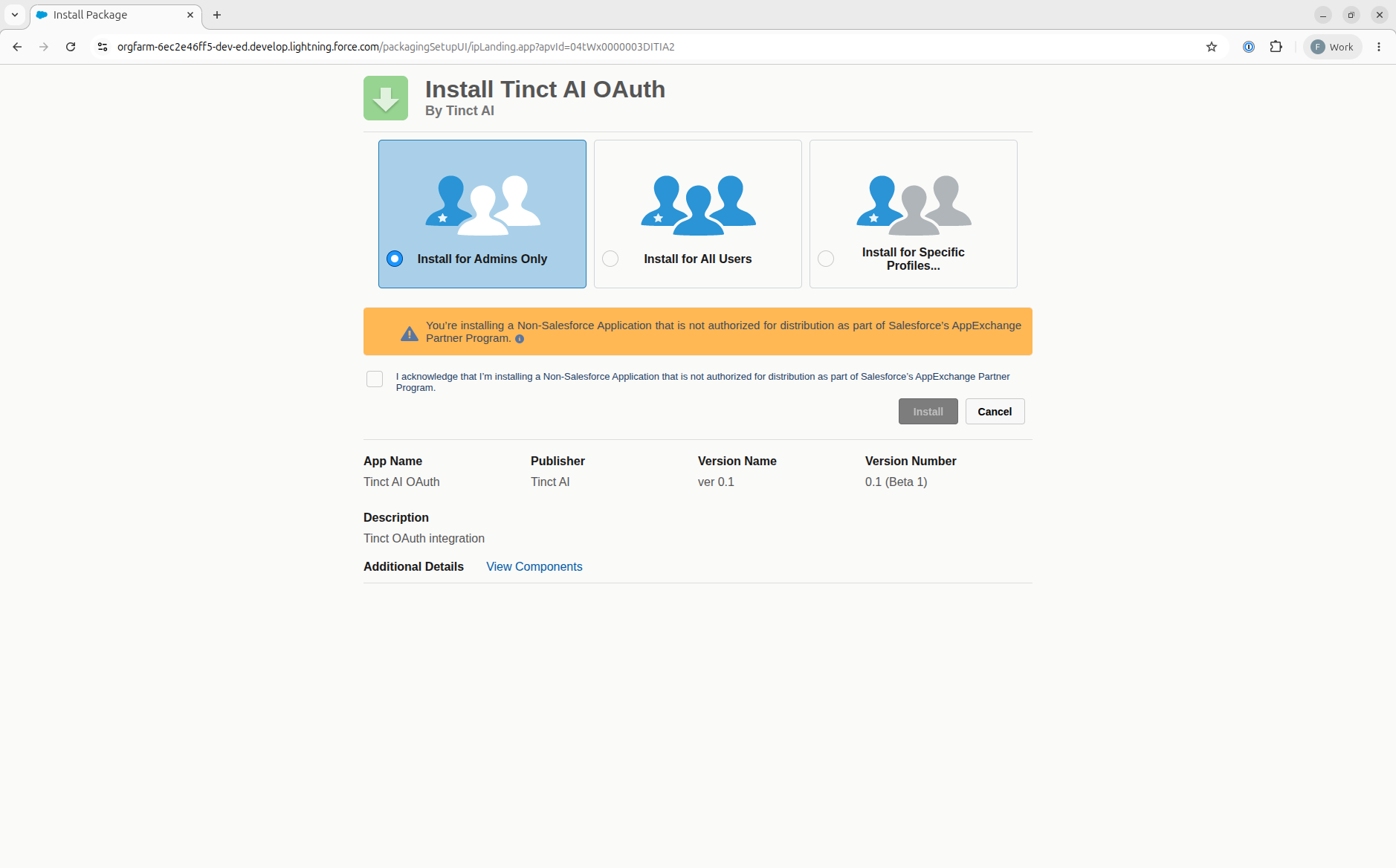
Step 4 — Acknowledge the notices and install
Salesforce will display one or two notices on the install dialog. Both are standard for packages distributed via direct URL — the distribution method used by most B2B SaaS vendors prior to or alongside an AppExchange listing.
Notice 1 — "Non-Salesforce Application…"
"You're installing a Non-Salesforce Application that is not authorized for distribution as part of Salesforce's AppExchange Partner Program."
This notice indicates that the package is being installed via direct URL rather than from the AppExchange marketplace. The wording is standard for any package not yet fully listed on AppExchange. Tinct is a registered Salesforce ISV partner.
Notice 2 — Beta tag on the version number (sandbox or early-access only)
Some Tinct package versions are marked as Beta (e.g. 0.1 (Beta 1)). You will only see this tag on sandbox install links or pre-release versions provided to early-access partners. Production installs against production orgs always use Released versions, with no Beta tag.
Tick the acknowledgment, then click Install. Installation typically completes in 30 seconds to 2 minutes. Do not close the tab during this period. On success, Salesforce displays a green "Installation Complete" message.
Step 5 — Verify the install
Verify the install in two locations:
Setup → quick find Installed Packages. You should see
Tinct AI OAuthlisted with the version number and namespacetinctai.Setup → quick find External Client App Manager. The entry
Tinct_AIshould be present.
5. Step-by-step: authorize Tinct from your workspace
The package install only makes Tinct available as an OAuth client in your org. No data flows until a user (typically the admin who installed the package) explicitly authorizes Tinct.
Step 1 — Initiate the connection from Tinct
Log in to
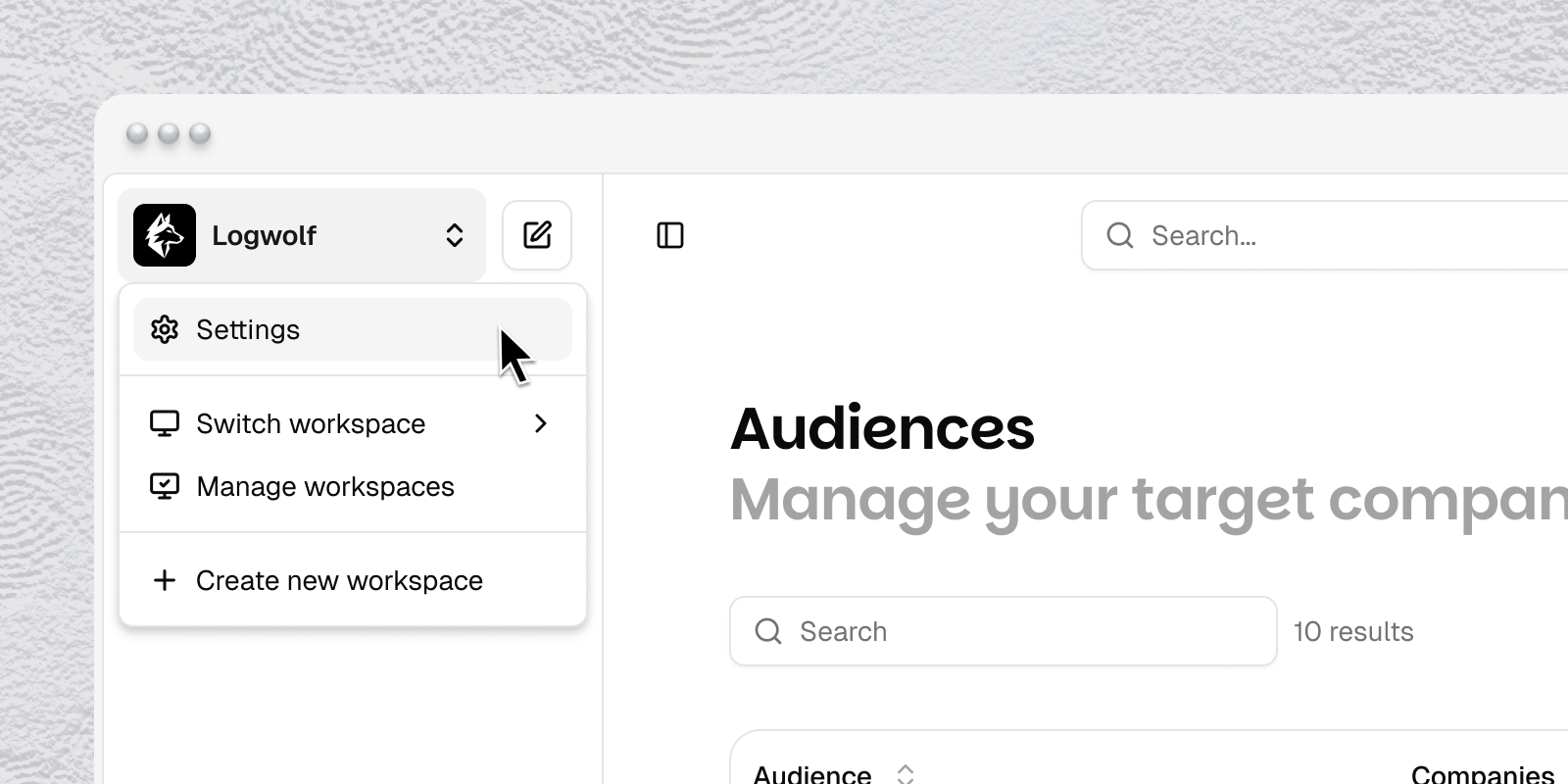
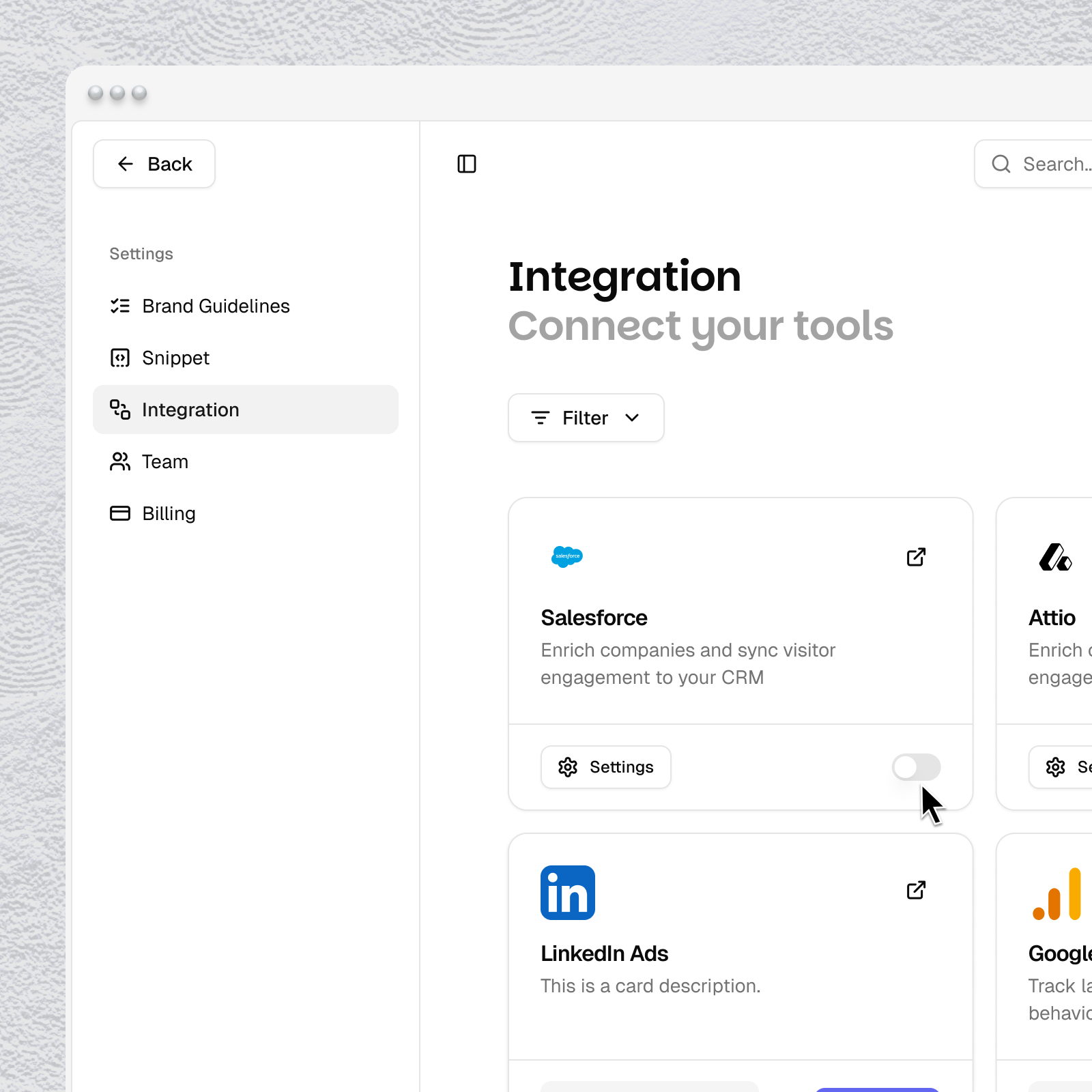
https://app.tinct.aiwith your Tinct credentials.Go to Workspace → Settings → Integrations → Salesforce.
Click Connect. Tinct opens a new tab pointed at your Salesforce org's authorization endpoint.
Step 2 — Review the permissions requested
Salesforce will display the list of permissions Tinct is requesting. Each entry, in plain language:
These are the only permissions Tinct will ever hold.
Step 3 — Approve and complete
Click Allow. You will be redirected to the Salesforce setting page, where the connection status will be displayed as Connected. From this point, you can launch a campaign using Salesforce data or wait for your first visits to sync from the Campaigns page.
6. Disconnecting or uninstalling
Option A — Disconnect (keep the package, stop the data flow)
In Tinct, go to Workspace → Settings → Integrations → Salesforce → Disconnect. Tinct stops calling Salesforce immediately. The package remains installed in your org.
Option B — Full uninstall (remove the package entirely)
Setup → quick find Installed Packages → find
Tinct AI OAuth→ Uninstall.Salesforce asks for confirmation and an optional reason.
After uninstall: the External Client App and OAuth Settings are removed from your org. Any active access tokens Tinct holds become immediately invalid; subsequent API calls from Tinct return
invalid_granterrors.
Reinstalling later: if you uninstall and reinstall a newer version, your OAuth authorization is reset and must be performed again. This is intentional — Salesforce treats the new install as a separate trust grant.
7. Frequently asked questions
Does Tinct gain access to records our administrator cannot see?
No. Tinct inherits the Salesforce permissions of the user who authorized the OAuth connection. Object-level security, field-level security, and sharing rules continue to apply.
Does the install modify our existing users, profiles, or page layouts?
No. The package only adds the two metadata records described in Section 3. No existing configuration is modified.
Can we install in sandbox before production?
Yes, and this is recommended. Replace login.salesforce.com with test.salesforce.com in the install URL to target a sandbox.
How are version upgrades handled?
For major versions, Tinct will provide a new install URL. The previous version should be uninstalled, the new version installed, and Section 5 repeated. Minor patches do not require a reinstall.
Where can IT and security teams send detailed questions?
Email security@tinct.ai. Available materials include SOC 2 control mappings, network egress lists, data retention policies, and incident response procedures.
8. Support and contacts
Was this helpful?
Still need help? Share an idea