Require SSO in your workspace
Make your identity provider the only way into your workspace, and know who is affected and how to get back in.
Last updated 11 days ago
Part of Single sign-on (SSO) for your workspace — step 3 of 3.
Requiring single sign-on makes your identity provider the only way into Tinct for every address on your verified domains. Passwords and social sign-in stop working for them, and your provider's rules — multi-factor authentication, conditional access, who is allowed in at all — become Tinct's rules too.
This is the last of the four stages described in Single sign-on (SSO) for your workspace. You can stay at Enabled for as long as you like.
Before you start
- You must be an admin of the workspace.
- The connection must be enabled (tested, and at least one domain verified).
- Your own session must have come through the connection. Sign out, sign in again through your identity provider, then come back — otherwise Tinct answers "Sign in through your identity provider first: single sign-on can only be required from a session opened through this connection." It is what proves the connection really works before it becomes the only door.
Turn the requirement on
- Go to Settings → Security, to the Status card.
- Turn on the Single sign-on required switch.
- The dialog tells you how many active members on your verified domains the identity provider is about to take over. Click Require SSO.
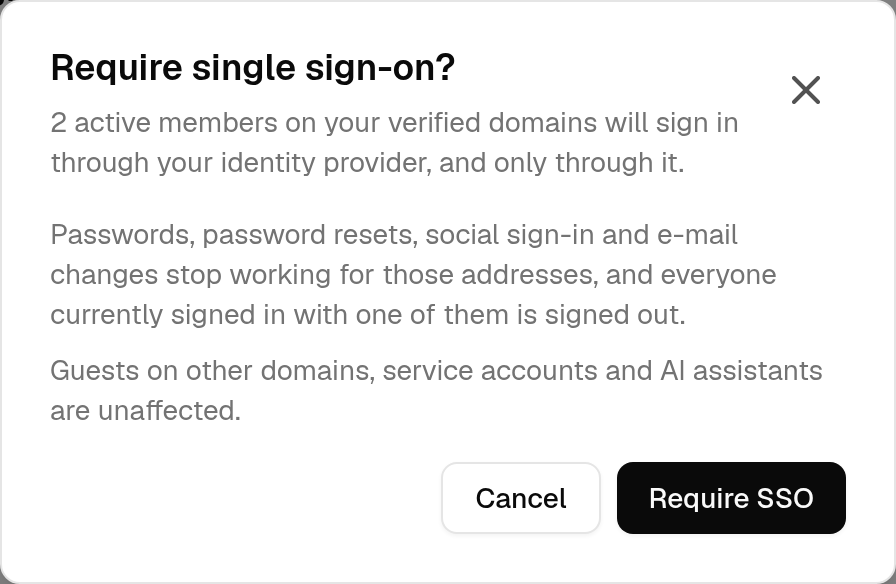
Who is affected
Everyone whose address is on one of your verified domains — whether or not they are a member of your workspace. The routing decision is made on the domain alone, so Tinct never has to reveal whether an account exists.
Not affected:
- Members and guests on other domains — an agency, a contractor, a client with their own address. They keep their password and their Google, Microsoft or LinkedIn sign-in.
- Service accounts used for API integrations.
- AI assistants connected through MCP. They keep working, and are still revoked when you remove the member who created them.
What stops working for those addresses
- Password sign-in, and setting or changing a password.
- Password reset — the reset form refuses the address.
- Google, Microsoft and LinkedIn sign-in, including an account that was linked before.
- Registration of a new Tinct account.
- Accepting an invitation by choosing a password. The invitee signs in through your provider instead.
- Changing an email address to, or away from, one of your domains.
Everyone currently signed in with one of those methods is signed out and sent to your identity provider. Members on your verified domains get an email, <workspace> now requires single sign-on, so they do not discover it in the middle of their work.
What a sign-in grants
On the Provisioning card:
- Role of new members — Editor or Viewer. Single sign-on never grants the admin role; admins are appointed by hand.
- Session length — 8 hours, 24 hours, 3 days or 7 days, 24 hours by default. After it, the person authenticates with your provider again — silently while their session there is still open.
- Create accounts at first sign-in — off, only people you invited can come in; nobody else is created.
Removing or suspending a member ends their access at once: their sessions and tokens, their AI-assistant tokens included, stop working immediately.
When someone leaves your company, what happens depends on whether your directory provisions your members:
- With automatic provisioning, deactivating them in your identity provider deactivates them in Tinct within seconds: their sessions and tokens end, and their account can no longer sign in at all. This is the recommended way to offboard. See Set up automatic provisioning (SCIM).
- Without it, deactivating them in your identity provider stops them signing in again, but their open Tinct session ends only when the session length above runs out. Remove or suspend the member in Tinct to end it immediately.
💡 Signing out of Tinct ends the Tinct session only. Tinct does not take part in single logout, and signing out of your identity provider does not end an open Tinct session.
Two-factor authentication under SSO
The second factor is your identity provider's. A session opened through the connection satisfies your workspace's own two-factor requirement, so people are not asked for a code twice. Enforce multi-factor authentication in your identity provider, where it belongs.
See Require two-factor authentication in your workspace.
Stop requiring it
- Go to Settings → Security, to the Status card.
- Turn off the Single sign-on required switch, then click Stop requiring SSO.
People on your verified domains can sign in with a password or a social account again. Those signed in through your identity provider stay signed in. Your workspace admins get an email saying the requirement ended, and why.
The requirement is also lifted by itself when the connection can no longer be trusted as it was:
- someone changes the issuer or client ID (OpenID Connect), or the entity ID, sign-on URL or the last valid certificate (SAML). A new client secret is not such a change;
- the last verified domain is removed.
In each case the connection goes back to an earlier stage and the admins are emailed. This is deliberate: a requirement must never outlive the connection it rests on.
If your identity provider is down
There is no password fallback, for anybody — admins and workspace owners included. That is the point of the requirement: no way in that bypasses your provider's multi-factor authentication.
- If you can still sign in through your provider, an admin turns the requirement off from Settings → Security.
- If nobody can, write to support@tinct.ai. Tinct support lifts the requirement after verifying the requester's identity against the workspace's registered administrators. Your admins can require it again themselves afterwards, and every change is logged.
FAQ
Can I exempt one person, or keep a break-glass password?
No. Anyone who must keep a password needs an address on a domain you have not verified.
Does this affect my other workspaces?
No. A requirement belongs to the workspace that set it, and it is not inherited by the workspaces of an agency's clients. Someone whose address is on your verified domains signs in through your provider, and the sign-in then gives them their other workspaces as usual.
Do people who never joined my workspace have to use my provider?
Anybody signing in with an address on one of your verified domains does. Whether they get a membership depends on your Create accounts at first sign-in setting.
Sign-ins keep failing — will I hear about it?
Yes. When a connection accumulates refusals of the same kind, your workspace admins get an email, Sign-ins through single sign-on keep being refused for <workspace>.
Was this helpful?
Still need help? Share an idea