The Studio : Edit, preview, refine your pages
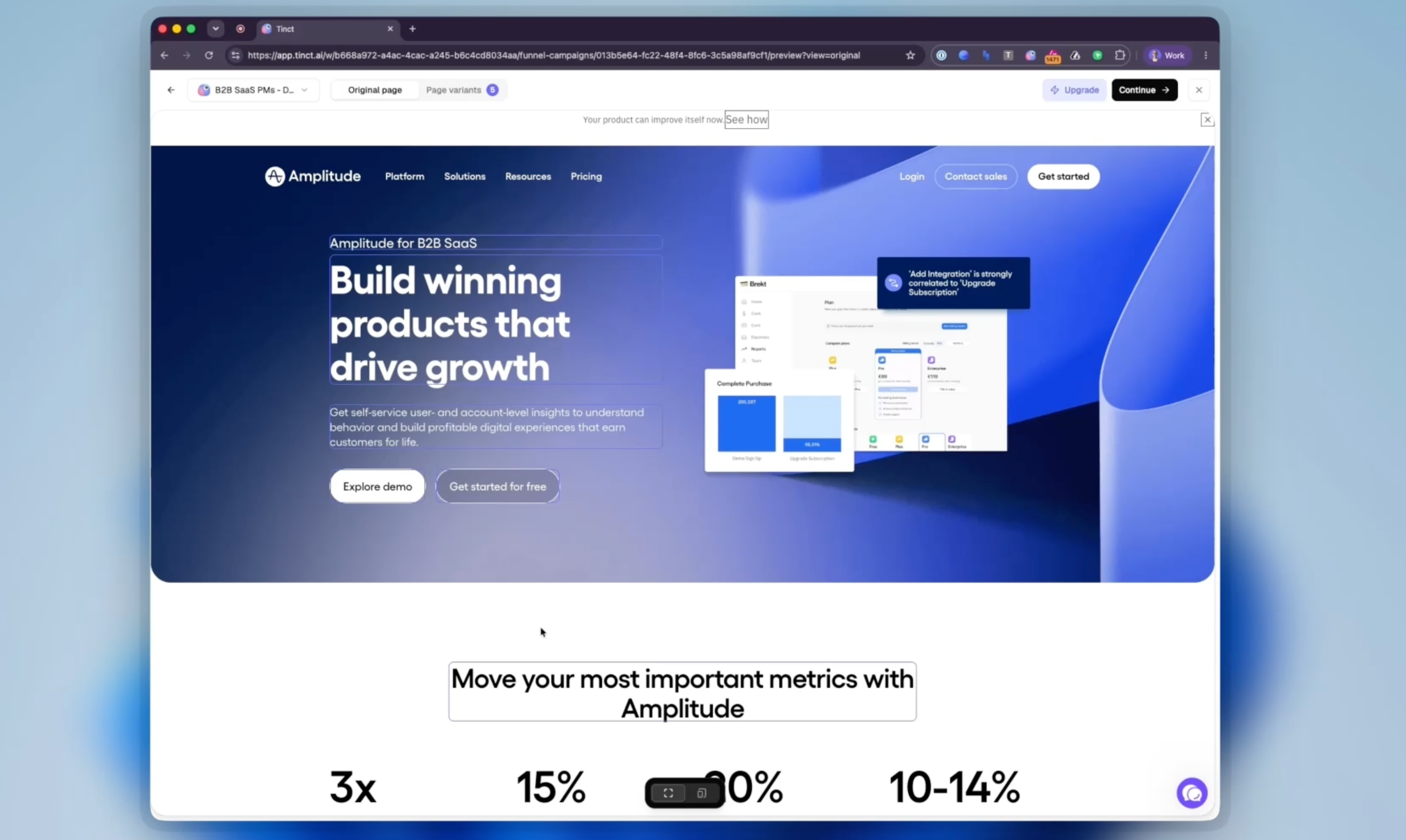
Until now, editing your page and checking the result lived on two screens. You changed a block in the editor, moved to the preview step to see what Tinct generated for each account, then went back. The Studio is one screen for both, and it shows every screen size at once.
Two tabs, one page.
"Original page" shows your page as Tinct captured it. This is where you decide which blocks get personalized and give Tinct its instructions.
"Page variants" shows every generated page, one per target account, in the same canvas.
Pick a page in seconds.
A panel on the left lists your Generated pages and your Target accounts, with search and a status filter. Each row carries its own actions.
Point at a block, then ask.
Select any block and it appears as a chip on your chat message : "Make this headline shorter". You choose whether the change applies to this page only or to all pages. Applied to all, Tinct learns the rule, lists it under "Campaign instructions" and regenerates the other page variants.
Type straight on the page.
Pick the Text tool in the bottom toolbar, click into any personalized text and type. Click away or press ⌘/Ctrl+Enter to save, Escape to cancel. The block pulses while Tinct saves it. This kind of edit changes that page only; ask the chat if you want it to become a rule.
Desktop, tablet and phone side by side.
Top right of the canvas, switch from "Single view" to "Canvas". Up to three artboards appear next to each other, Desktop, Tablet and Phone, each labelled with its pixel width. They are your page rendered at that exact width with the personalization applied, not screenshots, so a headline that wraps into three lines on a phone is visible before anyone sees it live. Blocks are selectable on any artboard. Pan with the trackpad, zoom with ⌘/Ctrl+scroll or a pinch, and use "Fit to view" to come back. Your choice of view is remembered.
Everything personalized by default.
Every block Tinct identified is now personalized without you switching it on, and variants are generated for all of them. Flip "Personalize with AI" off on the Original page to keep a block untouched. Click a block to see its badge, what Tinct understood, and the Original vs Personalized content side by side.
Publish from where you are.
"Review & publish" sits in the Studio header. Individual variants publish, unpublish or get excluded straight from the panel.
Available now on every campaign: as the "Preview & Refine" step when you create one, and under Studio on any existing campaign. Outdated pages regenerate on their own when you open the Studio, as long as your credits cover it.